10 Mistakes That Are Making Your PC Slow
You click on Chrome. It takes five seconds to open. A YouTube video stutters before it loads. You switch between two apps and the screen locks up for a full minute.
In most cases, a slow Windows PC isn’t failing — it’s overwhelmed. That distinction matters, because overwhelmed systems can be fixed without spending money.
If your Windows PC is running slow, there’s a very high chance one or more of the 10 mistakes below is responsible. This guide explains exactly why each one causes problems and gives you step-by-step fixes you can apply today.
Quick Answer: Why is my PC slow?
A PC slows down when CPU, RAM, or storage resources are consumed faster than they can be freed. The most common causes are too many startup programs, low storage space, outdated drivers, malware running in the background, or aging hardware — particularly an HDD — that can no longer keep pace with modern Windows demands.
⚡ Quick Slow PC Checklist
Work through this before reading the full article — you may find your fix in minutes.
⚡ Key Takeaways
- Disable high-impact startup apps — Task Manager → Startup Apps
- Verify your C: drive has at least 15% free space/li>
- Run a Windows Security quick scan for malware
- Open Task Manager → check CPU, RAM, and Disk usage levels
- ck CPU temperatures using HWiNFO64 (free, hwinfo.com)
- Update GPU drivers via NVIDIA, AMD, or Intel’s official websites
- Count open browser tabs and installed extensions — reduce both
- Set Power Mode to Best Performance, especially on laptops plugged in
- Review unknown processes under Task Manager → Processes
- Install any pending Windows updates
Found your issue? Jump directly to that section. Otherwise, read through all 10.
Table of Contents
- Too Many Startup Programs
- Low Storage Space
- Still Using an HDD Instead of an SSD
- Too Many Background Apps Running
- Malware and Unwanted Programs
- Overheating and Dust Buildup
- Outdated or Missing Drivers
- Not Enough RAM
- Ignoring Windows Updates
- Too Many Browser Tabs and Extensions
- How to Diagnose a Slow PC Before Spending Money
- When You Should Upgrade Hardware
- FAQ
Mistake #1: Too Many Startup Programs
Why It Slows Down Your PC
Every time your PC powers on, Windows loads the operating system plus every program configured to auto-start. Spotify, Discord, Steam, Adobe Updater, OneDrive, printer software — all of them launch silently before you’ve opened a single app intentionally. The result is a slow boot, a sluggish first 10 minutes, and a system that never feels fully settled.
Signs This Is Your Problem
- Boot takes more than 60 seconds to reach a usable desktop
- The first few minutes after startup feel noticeably worse than later in the session
- The hard drive activity light flashes continuously right after boot
- Task Manager shows elevated CPU or disk usage immediately after startup
How to Fix It
On Windows 11:
- Press Ctrl + Shift + Esc to open Task Manager
- Click Startup apps in the left panel
- Sort by the Startup impact column — focus on entries marked High
- Right-click unnecessary apps and select Disable
On Windows 10:
- Press Ctrl + Shift + Esc to open Task Manager
- Click the Startup tab
- Right-click unnecessary programs and select Disable
Safe to disable: Spotify, Steam, Discord, Adobe Updater, any game launcher, Skype, Teams (if not needed at boot), OneDrive (unless you rely on sync immediately at startup).
Do not disable: Windows Security, your antivirus, audio or graphics drivers.
Pro Tip
Disabling a startup entry doesn’t uninstall the app — it stops it from launching automatically. The app still works when you open it manually.
Real-World Observation: It’s common to find 12–18 startup apps enabled, many of which haven’t been actively used in months — leftover printer software, a game launcher for a deleted game, a peripheral utility for hardware that was replaced years ago. These persist invisibly because they never trigger an obvious error, just accumulated sluggishness.
The misconception that disabling startup apps will break something is widespread. It won’t.
Realistic expectation: Boot time improvement is noticeable on the first restart. A PC that previously took 3–4 minutes to settle typically drops to 60–90 seconds. If boot time barely changes after this fix, the bottleneck is likely the storage drive itself — move to Mistake #3.
Mistake #2: Running Low on Storage Space
Why It Slows Down Your PC
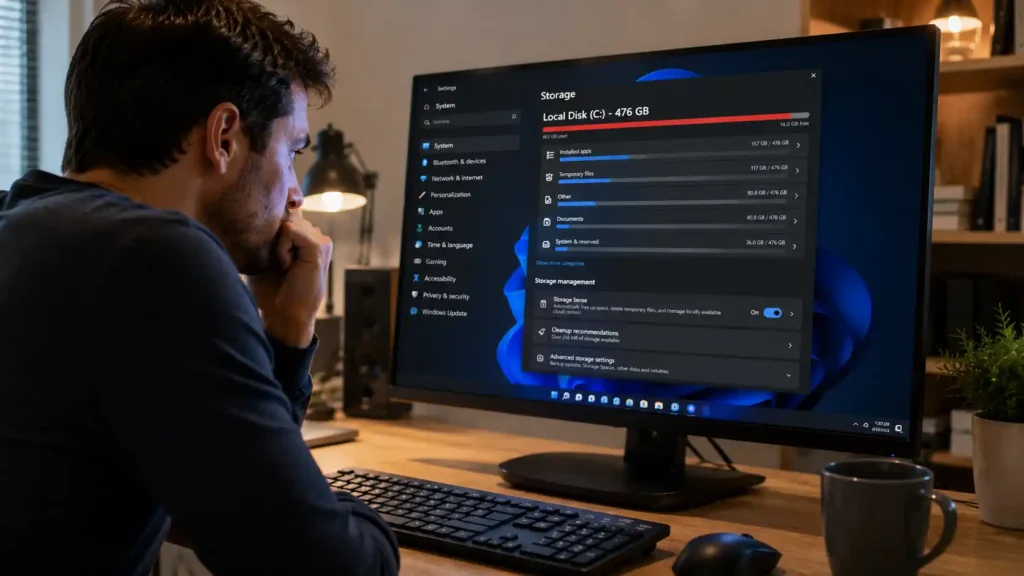
Windows requires free space on the C: drive for more than file storage. It needs it for temporary files, pending updates, and Virtual Memory — when RAM fills up, Windows offloads data overflow to the drive as a fallback. When the C: drive is nearly full, all of these processes compete for the same shrinking space, causing slowdowns, failed updates, and instability.
Keep at least 15% of your C: drive free at all times.
Signs This Is Your Problem
- Windows shows a Low disk space notification
- Windows Update repeatedly fails or stalls
- Apps crash or take unusually long to open
- File Explorer is slow loading folders
- Your C: drive shows in red under This PC
How to Fix It
Step 1 — Run Storage Sense:
- Go to Settings → System → Storage
- Toggle Storage Sense on
- Click Run Storage Sense now to clear temp files immediately
Step 2 — Delete Temporary Files Manually:
- Press Windows + R, type %temp%, press Enter
- Select all with Ctrl + A and delete
- Skip any files showing a currently in use error — that’s expected
Step 3 — Uninstall Unused Apps:
- Go to Settings → Apps → Installed Apps
- Sort by size
- Remove anything you haven’t opened in months
Step 4 — Move Large Files Off the C: Drive: Downloads folders, old videos, and archived project files are common culprits. Move them to a secondary drive or cloud storage.
Pro Tip
The Downloads folder is consistently one of the largest sources of wasted space on Windows machines. Installers, ZIP archives, and setup files accumulate silently for years. Check it first.
Real-World Observation: A common misconception: I have a 1TB drive, storage can’t be the problem. Total drive capacity is irrelevant — what matters is free space specifically on the C: partition. A 1TB drive with a 120GB C: partition that’s 95% full will cause Windows to struggle, even if 800GB is free on D:.
What usually doesn’t work: Running Disk Cleanup alone. It typically recovers a few hundred MB at most. The meaningful recovery comes from clearing the Downloads folder, removing leftover folders from uninstalled games (often still in C:\Program Files), and deleting the Windows.old folder if present — safe to remove once you’ve confirmed you won’t need to roll back your Windows version.
Realistic expectation: Recovering 20GB or more typically produces noticeable improvements in app launch speed and update reliability.
Mistake #3: Still Using an HDD Instead of an SSD
Is upgrading to an SSD worth it?
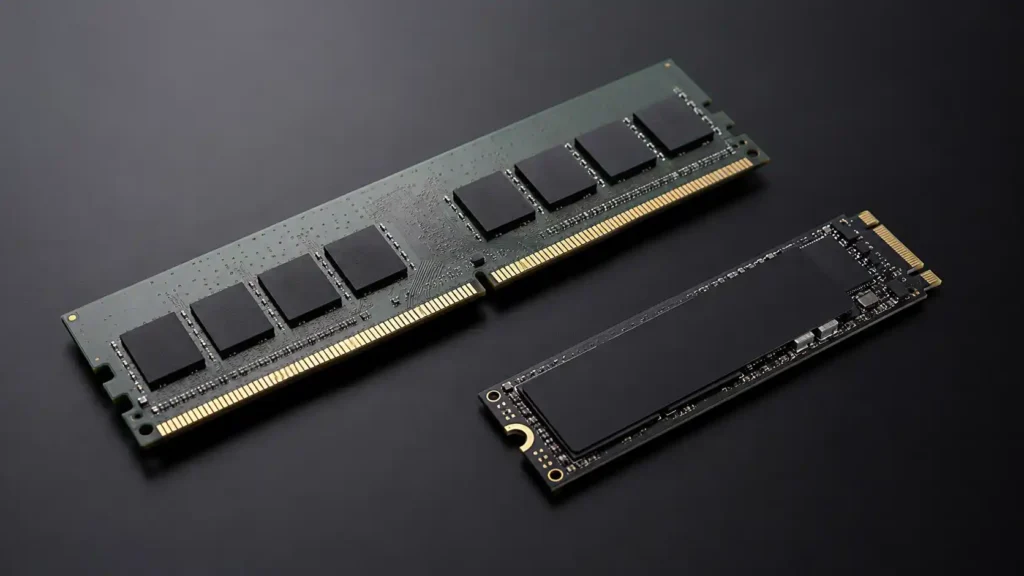
For any PC still running on an HDD, yes — without reservation. Boot times drop from several minutes to under 30 seconds. Apps open nearly instantly. No other single hardware change produces a more noticeable improvement in everyday feel. For most users, an SSD is the highest-return PC upgrade available.
Why It Slows Down Your PC
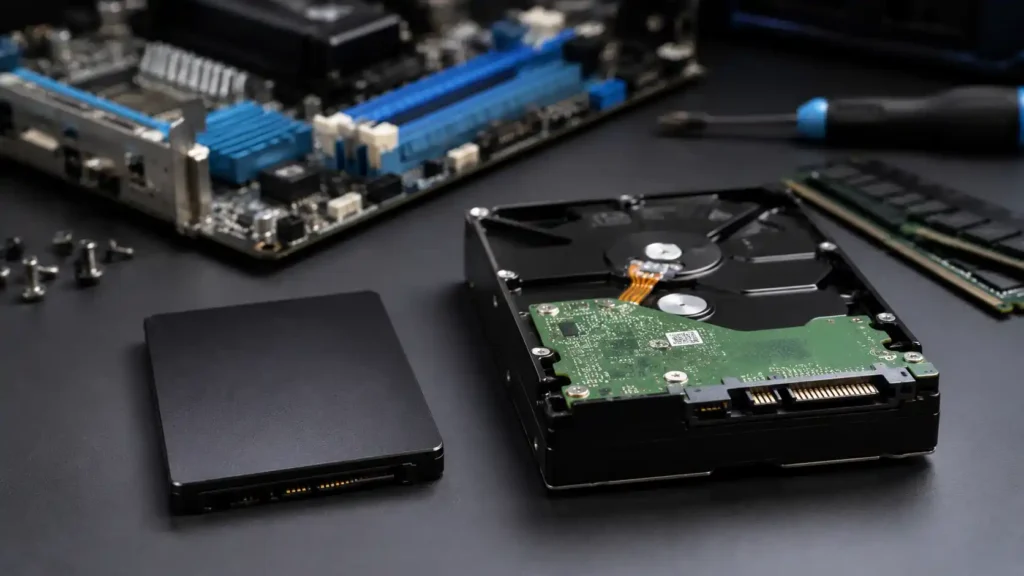
A traditional Hard Disk Drive uses spinning magnetic platters and a mechanical read/write arm. A Solid State Drive stores data on flash memory chips with no moving parts. The performance gap is enormous, and it affects everything — boot times, app launches, file operations, and how the system handles multitasking.
On a typical HDD, Windows 11 may take 3–4 minutes to fully boot and become responsive. On an SSD, the same system is ready in 15–25 seconds.
SSD vs HDD Comparison
| Factor | HDD | SSD |
| Boot time — Windows 11 | 3–4 minutes | 15–25 seconds |
| App launch speed | Slow | Near-instant |
| Sequential read speed | 80–160 MB/s | ~500 MB/s (SATA) · 2,000–7,000+ MB/s (NVMe) |
| Disk usage at 100% | Frequent | Rare |
| Noise | Audible clicking and spinning | Silent |
| Shock resistance | Low — has moving parts | High — no moving parts |
| Typical consumer lifespan | 3–5 years | 5–10 years |
| Price — 500GB (India) | ₹1,800–₹3,500 | ₹7,500–₹15,000 |
| Verdict | Outdated for OS use | Strongly recommended |
Speed figures based on manufacturer specifications from Samsung, WD, and Seagate product datasheets. NVMe speeds vary by PCIe generation — PCIe 3.0 drives reach ~3,500 MB/s; PCIe 4.0 drives reach 5,000–7,000+ MB/s.
Signs This Is Your Problem
- Boot remains slow even after disabling startup apps
- Everything feels sluggish despite low CPU and RAM usage in Task Manager
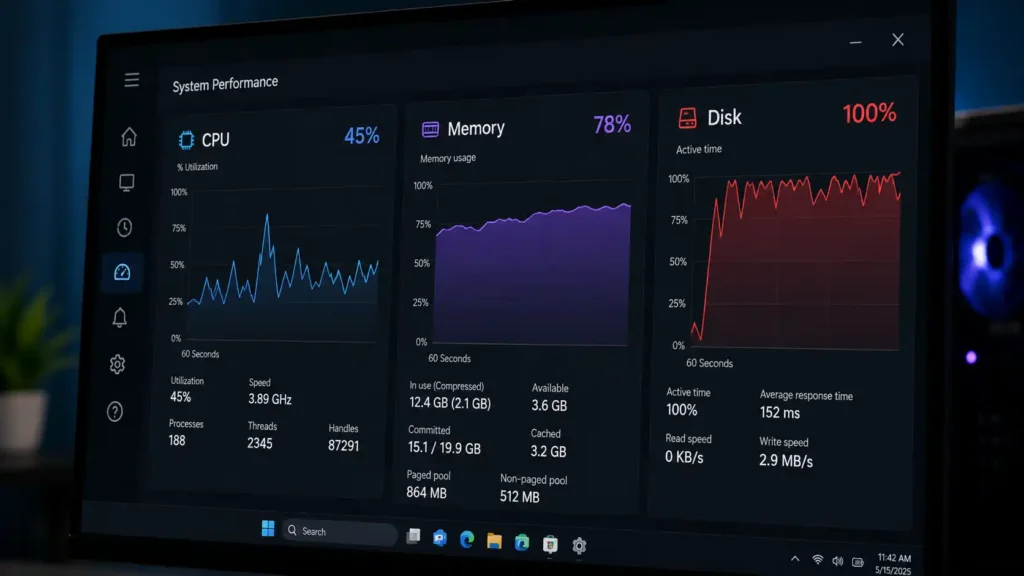
- Task Manager → Performance → Disk shows 95–100% usage during normal tasks
- You hear a faint clicking or spinning sound from the PC
How to Confirm Which Drive Type You Have
- Open Task Manager (Ctrl + Shift + Esc)
- Click the Performance tab
- Select Disk — the drive type (HDD or SSD) is listed beneath the graph
How to Fix It
An SSD upgrade involves replacing or adding a drive. For most desktops and many laptops, the process is straightforward. In the Indian market, the Samsung 870 EVO is a reliable SATA SSD for budget builds, while the WD Blue SN580 is a strong NVMe option for mid-range systems — both are consistently stocked on Amazon India. For current pricing and model comparisons, see our Best Budget SSDs in India guide.
If your laptop has a single drive slot, clone the existing HDD to the new SSD before swapping — this preserves Windows, all files, and installed apps without a fresh installation.
Pro Tip
On a desktop with budget constraints, adding a 256GB SSD solely for Windows while keeping the HDD for file storage produces dramatic improvement at minimum cost. The OS and applications run from the fast drive; the HDD handles storage only. For a full breakdown of which type to choose, see our SSD vs HDD: Which Should You Buy? guide.
Real-World Observation: The most misunderstood symptom of an HDD bottleneck is persistent 100% disk usage in Task Manager. Many users spend hours on software fixes — disabling services, running registry tweaks, applying optimization tools — when the HDD simply cannot process Windows 11’s concurrent read/write demands quickly enough. No software change resolves this. The drive is the hard ceiling.
What doesn’t work: Defragmenting an HDD on Windows 11. Windows handles this automatically on a schedule, and manual runs produce no meaningful speed improvement. More importantly — never defragment an SSD. It doesn’t improve performance and unnecessarily reduces drive lifespan by adding write cycles.
Realistic expectation: The improvement after an SSD upgrade is immediate and significant. Most users describe the system feeling new again. One caveat: if the CPU is pre-2015 era, some processing-heavy tasks will still feel slow — an SSD removes storage bottlenecks, not CPU limitations.
Mistake #4: Too Many Background Applications Running
Why It Slows Down Your PC
Closing an app doesn’t always stop it. Many applications minimize to the system tray and continue running — antivirus schedulers, cloud sync clients, browser update services, game platforms, RGB lighting software. Each maintains active processes consuming RAM and CPU continuously. A dozen of these running simultaneously can account for 1–2GB of RAM usage before you’ve opened a single app intentionally.
Signs This Is Your Problem
- Task Manager shows elevated CPU or RAM usage with nothing deliberately open
- Fans run loudly when the PC appears idle
- Performance feels slow immediately after a clean boot
- Many small icons are visible in the taskbar system tray (bottom-right corner)
How to Fix It
Close active background processes temporarily:
- Open Task Manager (Ctrl + Shift + Esc)
- Click the Processes tab
- Sort by CPU or Memory — click the column header
- Right-click resource-heavy processes you don’t need and select End Task
Prevent apps from running in the background permanently:
- Go to Settings → Apps → Installed Apps
- Click an app → Advanced Options
- Under Background app permissions, set to Never
Pro Tip
Right-click any icon in your system tray and close what you don’t actively need. Everything visible there is currently consuming memory.
Real-World Observation: It’s common to find 15–20 system tray entries on a PC that’s been in use for 2–3 years: multiple cloud storage clients, a VPN, a GPU control panel, a printer utility, smart home apps, an RGB controller. The user doesn’t notice them accumulating, but the RAM consumption is real and persistent.
Two Windows background services worth knowing:
Windows Search Indexing runs heavily for several hours after a major update or on a newly set up PC, spiking disk activity noticeably. This is temporary and resolves on its own. Do not permanently disable Windows Search to stop it — the indexing will finish and activity will return to normal.
SysMain (formerly SuperFetch) preloads frequently used apps into RAM in anticipation of use. On systems with 8GB+ RAM and an SSD, it works as intended. On systems with 4GB RAM and an HDD, SysMain can worsen performance by consuming RAM that running applications need. To disable it: press Windows + R, type services.msc, find SysMain, right-click → Properties → set Startup type to Disabled, then restart.
Mistake #5: Ignoring Malware and Unwanted Programs
Why It Slows Down Your PC
Malware — viruses, adware, spyware, and cryptominers — runs silently and consumes CPU, RAM, and internet bandwidth. A PC with active mining malware can have its processor running near maximum capacity with nothing visible on screen. Modern malware is engineered to stay hidden, so the performance drain is often misattributed to aging hardware.
Beyond actual malware, Potentially Unwanted Programs (PUPs) — browser toolbars, fake system optimizers, and browser hijackers — separately consume background resources while appearing to be legitimate tools.
Signs This Is Your Problem
- Browser homepage changed without your input
- Pop-up ads appear on websites that don’t normally show them
- Task Manager shows an unfamiliar process consuming high CPU
- PC runs hot and loud even at idle
- Internet speeds feel consistently below your connection plan
How to Fix It
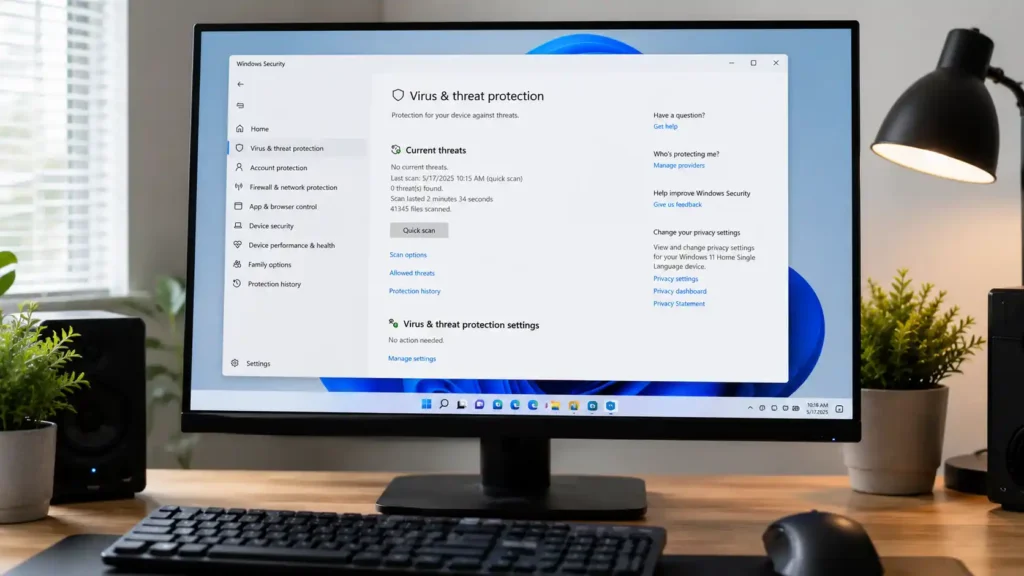
Step 1 — Scan with Windows Security:
- Go to Settings → Privacy & Security → Windows Security
- Click Virus & Threat Protection → Quick Scan
- Follow the prompts to remove anything found
Step 2 — Identify and remove PUPs:
- Go to Settings → Apps → Installed Apps
- Sort by install date — look for apps you don’t recognize
- Search any unfamiliar app name before removing it
Step 3 — Reset a hijacked browser: Chrome: Settings → Reset and clean up → Restore settings to original defaults
Pro Tip
Windows Defender — built into Windows 10 and 11 and updated automatically through Windows Update — is effective protection for most home users. Paid third-party antivirus is not required for typical use. Avoid PC optimizer or system cleaner tools promoted online — many are PUPs themselves and create the exact problems they claim to fix.
Real-World Observation: A common misconception: I didn’t download anything suspicious, so I can’t be infected. In practice, many infections arrive through browser extensions, pirated software bundled with otherwise legitimate-looking installers, and fake Windows update prompts served through websites. The source is often not obvious.
When a clean scan isn’t enough: Some malware evades Windows Security’s quick scan. If you still suspect infection after a clean result, run Malwarebytes Free as a secondary check — it uses different detection methods and doesn’t need to remain installed permanently. Download it directly from malwarebytes.com to ensure you’re getting the legitimate version.
Trust signal: Microsoft’s documentation states that Windows Security provides real-time protection against viruses, ransomware, and spyware, with definition updates delivered automatically through Windows Update.
Realistic expectation: If malware was the cause, improvement after removal is immediate — idle CPU usage should drop to 1–5%, fan noise reduces, and browsing noticeably speeds up. If the PC remains slow after a clean scan result, the cause is hardware or software configuration.
Mistake #6: Letting Your PC Overheat
Why It Slows Down Your PC
When a CPU or GPU reaches its thermal limit, it activates thermal throttling — a self-protection mechanism that reduces clock speeds to generate less heat. From the user’s perspective, this shows up as sudden performance drops during gaming, video calls, or sustained workloads. The primary culprits are dust-clogged heatsink fins, degraded thermal paste between the CPU and its cooler, and restricted airflow.
Signs This Is Your Problem
- Fans run at full speed during normal tasks
- Performance drops noticeably after 20–30 minutes of use under load
- Games or apps that previously ran smoothly now stutter
- Laptop bottom surface becomes uncomfortably hot
- PC shuts down unexpectedly during heavy use
How to Check Your Temperature
Download HWiNFO64 (free, hwinfo.com) or Core Temp (free, alcpu.com). Run either tool for 10 minutes during normal use. General safe targets for most consumer hardware:
- CPU at idle: below 50°C
- CPU under sustained load: below 85–90°C
- GPU under load: below 85–90°C
Note: Some modern AMD Ryzen processors (5000 series and later) are designed to operate near 90–95°C under load — this is within specification for those chips. Check AMD’s documentation for your specific processor model before concluding there is a problem.
For temperature interpretation by processor model, see our CPU Temperature Guide.
How to Fix It
Desktop:
- Power off and open the case
- Use compressed air to clear dust from fans, heatsink fins, and all vents
- If the PC is 3+ years old, remove old thermal paste with 90%+ isopropyl alcohol and apply a fresh layer
Laptop:
- Use compressed air through the exhaust vents — do not use a household vacuum, which generates static electricity
- Use the laptop on hard, flat surfaces only — fabric surfaces block the intake vents underneath
- For heavy sustained workloads, a cooling pad improves ambient airflow around the chassis
For step-by-step cleaning instructions, see our How to Clean Your PC guide.
Pro Tip
Clean a desktop PC’s fans and heatsink every six months. Dust accumulation and the resulting performance degradation are gradual — most users don’t notice until throttling becomes severe.
Real-World Observation: Thermal throttling is frequently misdiagnosed. A user notices their game stutters or their video call lags. They blame Windows, the GPU, or their internet connection. The actual cause is a heatsink clogged after two years of use, with CPU temperatures hitting 95°C+ under any meaningful load.
On laptops, a common misconception is that adding a cooling pad solves overheating. If the internal heatsink fins are packed with dust, the cooler cannot transfer heat efficiently regardless of what’s underneath the laptop. The fix is cleaning inside, not adding airflow outside.
What doesn’t work: Applying fresh thermal paste without removing the old paste first. Existing compound must be fully cleaned off with isopropyl alcohol (90%+) before applying the new layer. Applying paste on top of old paste reduces, not improves, thermal conductivity.
Realistic expectation: If overheating was causing throttling, improvement is most noticeable during sustained workloads — gaming, rendering, video calls. Idle performance typically remains unchanged, since throttling only activates when thermal thresholds are crossed.
Mistake #7: Using Outdated or Missing Drivers
Why It Slows Down Your PC
Drivers are the software layer that allows Windows to communicate with hardware. An outdated GPU driver causes frame drops, visual tearing, and application instability. An outdated network driver produces Wi-Fi disconnections and throughput drops. An outdated chipset driver affects how efficiently the CPU communicates with storage and memory. These issues are routinely blamed on hardware when a driver update resolves them entirely.
Signs This Is Your Problem
- Games stutter on hardware that should handle them comfortably
- Wi-Fi disconnects or shows lower speeds than other devices on the same network
- Audio distorts or cuts out intermittently
- Yellow warning triangles appear in Device Manager
- Drivers haven’t been updated since the PC was purchased
How to Fix It
GPU drivers — highest priority for gamers and creative users:
- NVIDIA: Use GeForce Experience → Drivers → Check for Updates, or download directly from nvidia.com
- AMD: Use AMD Software: Adrenalin Edition → Updates, or download from amd.com
- Intel integrated graphics: Use the Intel Driver & Support Assistant at intel.com/support
All other drivers through Windows Update:
- Settings → Windows Update → Advanced Options → Optional Updates
- Expand Driver Updates if available
- Select all and install
Check for flagged hardware in Device Manager:
- Right-click Start → Device Manager
- Yellow triangle icons indicate driver problems
- Right-click the flagged device → Update Driver → Search automatically
Pro Tip
Always download GPU drivers directly from NVIDIA, AMD, or Intel’s official sites. Windows Update typically installs a generic Microsoft-signed driver that may be months behind the manufacturer’s current release — functional, but not optimized.
Real-World Observation: Outdated GPU drivers are among the most overlooked performance fixes, particularly on gaming PCs. A graphics card gets installed, the PC works, and the driver page is never revisited. Two years later, the installed driver predates dozens of game-specific optimizations.
NVIDIA labels its game-validated releases Game Ready Drivers — these are tested with game developers before major titles ship and can meaningfully affect both performance and stability. AMD follows a comparable validation process for major releases. Updating the GPU driver before launching a newly released game is standard practice, not optional.
Common misconception: The hardware works, so the driver is fine. A driver can be fully functional — the hardware operates — while performing significantly below what the current version delivers. Functionality and optimization are not the same thing.
Mistake #8: Not Having Enough RAM
Quick Answer: How much RAM do I need for Windows 11?
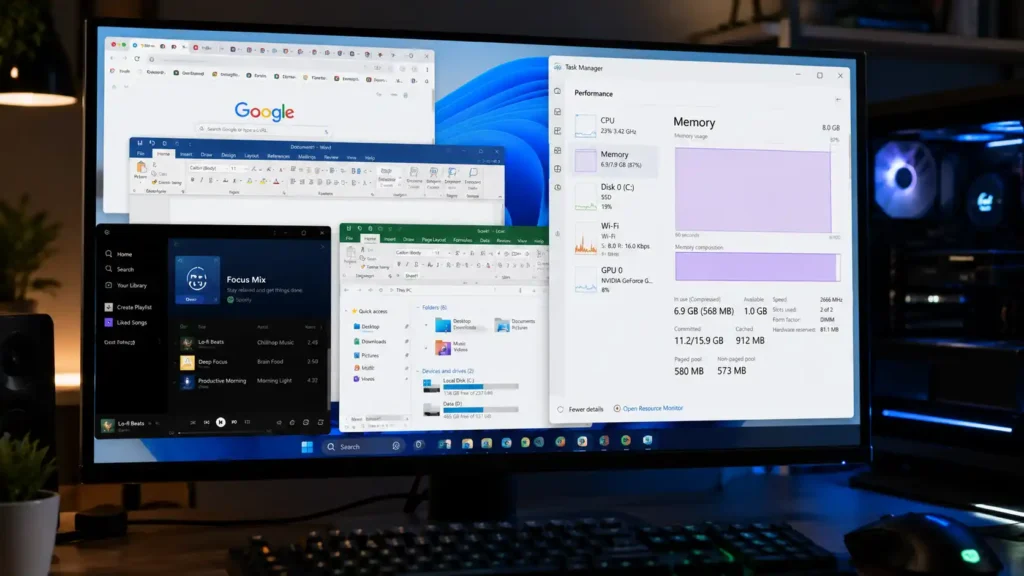
8GB is the practical minimum for a smooth everyday Windows 11 experience. 16GB is recommended for gaming, multitasking, or keeping multiple apps and many browser tabs open simultaneously. 32GB suits video editing, 3D rendering, and virtual machines. Microsoft’s minimum stated requirement for Windows 11 is 4GB — this is the threshold for installation, not comfortable daily use.
Why It Slows Down Your PC
RAM is where the PC stores data for everything currently active. When available RAM runs out, Windows begins writing overflow data to the storage drive — a fallback called the Page File (Virtual Memory). Drive access is orders of magnitude slower than RAM access. On an SSD, Page File usage is noticeable but manageable. On an HDD, it produces severe stuttering and long delays when switching between apps.
Signs This Is Your Problem
- Task Manager shows RAM usage consistently above 85–90%
- Switching between open apps causes freezing or multi-second delays
- Performance drops sharply with multiple browser tabs open
- Windows shows a Your PC is low on memory notification
How to Check Your Current RAM Usage
- Open Task Manager → Performance tab → Memory
- Check the In Use figure against your total installed RAM
- If In Use regularly exceeds 6.5GB on an 8GB system, RAM is the constraint
RAM Requirement Table
| Installed RAM | Use Case | Expected Experience on Windows 11 |
| 4GB | Below practical minimum | Constant slowdowns; heavy Page File usage; not recommended |
| 8GB | Basic everyday use | Adequate for standard tasks; tight under multitasking |
| 16GB | Gaming, office multitasking | Comfortable for most users; recommended standard |
| 32GB | Video editing, 3D work, virtual machines | Future-proof; rarely a bottleneck |
| 64GB+ | Professional workstations | Specialized applications only |
Microsoft’s official minimum RAM requirement for Windows 11 is 4GB for installation. This is not a target for comfortable everyday computing.
How to Fix It
Immediate — no cost: Close apps and browser tabs not in active use. Each Chrome tab consumes roughly 100–400MB of RAM depending on the page content.
Long-term — hardware: Install additional RAM. For desktops, this is typically a straightforward DIY upgrade. For laptops, check whether RAM is user-accessible or soldered to the motherboard before purchasing — many budget laptops do not support RAM upgrades.
RAM pricing varies depending on capacity, speed, and brand. Check current pricing and compatibility. Before purchasing, verify your motherboard’s supported RAM type and maximum capacity using CPU-Z (free tool). See our Best Budget RAM for PC Builds guide for currently verified options.
Pro Tip
More RAM only helps if RAM is the actual bottleneck. If Task Manager shows memory usage consistently below 65%, a RAM upgrade will produce no measurable improvement. Diagnose before spending.
Real-World Observation: A common scenario: a budget laptop purchased in 2020 with 4GB of soldered RAM ran Windows 10 adequately. After upgrading to Windows 11, everything slowed. Windows 11 uses more memory at idle than Windows 10 did — the RAM didn’t degrade, the OS requirements increased.
About the Page File: Windows manages Page File size automatically, and this setting should be left on automatic for most users. Advice circulating online that recommends disabling the Page File entirely is incorrect — doing so can cause application crashes, particularly in memory-intensive software. The correct fix for excessive Page File usage is adding more RAM, not removing the overflow mechanism.
You can monitor Page File activity in Task Manager → Performance → Memory. Look at Committed versus Available. If Committed is significantly higher than your installed RAM, the system is regularly spilling into the Page File.
Mistake #9: Skipping Windows Updates
Why It Slows Down Your PC
Windows Updates include more than security patches. They deliver performance improvements, memory management fixes, and driver updates that directly affect how efficiently the OS runs. Staying behind on updates means running a version of Windows with known performance issues that Microsoft may have already resolved. Earlier Windows 11 builds had documented cases of elevated background CPU usage from certain system processes — issues addressed in subsequent cumulative updates.
Deferred updates also expand the attack surface for malware, which actively exploits unpatched vulnerabilities.
Signs This Is Your Problem
- Windows Update shows multiple deferred updates that have been dismissed
- Restart required notifications have been ignored for weeks
- CPU or disk activity spikes unpredictably — Windows may be downloading overdue updates in the background
How to Fix It
- Go to Settings → Windows Update → Check for Updates
- Download and install everything available
- Restart when prompted — many updates cannot fully apply until after a restart
Check your current Windows build: Press Windows + R, type winver, press Enter. This shows your exact version and build number — useful for looking up known issues specific to your release.
Pro Tip
Configure Active Hours so Windows doesn’t restart mid-task: Windows Update → Advanced Options → Active Hours. Set your typical working window, and restarts will be scheduled outside it.
Real-World Observation: A common pattern: a user dismisses update prompts for months. Eventually, Windows begins downloading the accumulated backlog automatically in the background, causing unpredictable CPU and disk spikes that make the PC feel randomly sluggish throughout the day. The fix is straightforward — let the updates install, restart twice if prompted, and the background activity settles.
Common misconception: Windows Updates slow down my PC. A feature update does cause a temporary slowdown during installation, typically resolving within one or two restarts. If a PC remains permanently slower after an update, a driver conflict is the more likely cause — check Device Manager for yellow warning icons on any hardware after major updates.
Power Mode — One of the Most Overlooked Settings
On laptops, this single setting is one of the most effective free performance improvements available. Windows defaults to Balanced power mode to preserve battery, which limits how aggressively the CPU scales up under demand. Switching to Best Performance allows the CPU to respond faster to workload spikes.
Settings → System → Power & Battery → Power Mode → Best Performance
On laptops: use Best Performance when plugged in; switch back to Balanced on battery to preserve charge. On desktops, there is no battery consideration — Best Performance can be set permanently.
For Microsoft’s official list of additional performance fixes, see Tips to Improve PC Performance in Windows on Microsoft Support.
Mistake #10: Too Many Browser Tabs and Extensions
Why It Slows Down Your PC
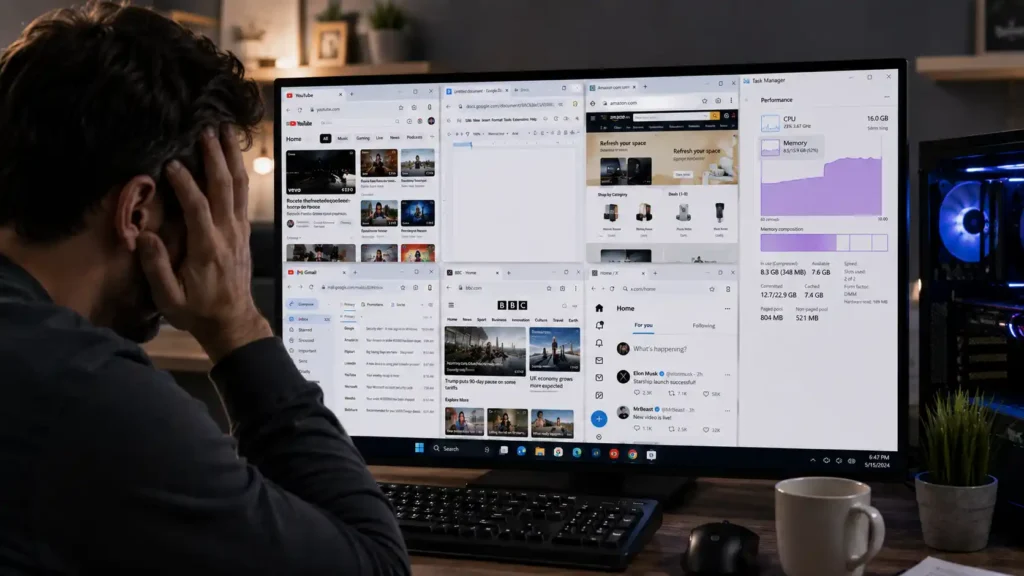
Chrome, Edge, and Firefox use a multi-process architecture — each tab runs as a semi-independent process in memory. Thirty open tabs can consume 3–5GB of RAM on their own. Add 10–15 extensions — each injecting scripts into every page you visit — and the browser becomes one of the heaviest applications on the system. Many users attributing slowness to aging hardware are actually running into browser resource consumption.
Signs This Is Your Problem
- The PC feels responsive until the browser opens
- Task Manager consistently shows Chrome or Edge at the top for RAM and CPU usage
- Scrolling on webpages feels choppy or inconsistent
- Performance is worst during video calls or while streaming
How to Fix It
Reduce tab count: Use OneTab (free — available for Chrome, Edge, and Firefox) to collapse all open tabs into a saved list. RAM is freed immediately; tabs are restored individually on demand.
Audit extensions:
- Chrome: navigate to chrome://extensions
- Edge: navigate to edge://extensions
Disable every extension you don’t actively use daily. Remove anything installed more than a month ago that you’ve never returned to. High-impact offenders: grammar checkers, coupon finders, PDF converters, download managers, VPN extensions.
Enable browser memory management:
- Chrome: Settings → Performance → Memory Saver → On
- Edge: Settings → System and performance → Sleeping tabs → On
Both features automatically reduce memory usage for inactive tabs.
Pro Tip
Bookmark pages you plan to read later rather than keeping them open. An open tab consumes active RAM continuously. A bookmark uses none.
Real-World Observation: Extension accumulation is slow and largely invisible. A PDF tool installed for one task in 2022, a grammar checker from a writing project, a coupon extension tried once — none of them ever removed. Three years later, 18 extensions are injecting JavaScript into every page load on a browser that feels sluggish for no obvious reason.
Bloatware on new laptops: Budget laptops from HP, Dell, Lenovo, and Acer commonly ship with manufacturer-installed software — trial antivirus subscriptions, media tools, shopping assistants, support utilities — most configured to run at startup and in the background. Go to Settings → Apps → Installed Apps, sort by Publisher, and remove anything from the PC manufacturer you didn’t request and don’t use. On a fresh machine, this step alone can recover 500MB–1.5GB of RAM.
Browser hardware acceleration: By default, browsers use the GPU to render pages and play video. This is beneficial on most systems. On PCs with outdated or poorly supported GPU drivers, however, it can cause stuttering or visual artifacts during scrolling and video playback. If your browser lags specifically in those scenarios, test disabling it:
- Chrome: Settings → System → Use hardware acceleration when available → Off
- Edge: Settings → System and performance → Use hardware acceleration when available → Off
Restart the browser after the change. If performance improves with it disabled, update your GPU driver and re-enable it — the driver was the underlying issue.
How to Diagnose a Slow PC Before Spending Money
Before purchasing hardware or paying for repair, run this five-minute diagnostic. It identifies whether your problem is software — fixable at no cost — or hardware, where investment is justified.
Step 1 — Open Task Manager and check four things
CPU (Performance → CPU) Normal idle: 1–10%. Sustained readings above 30–40% at idle with nothing open suggest malware, an intensive indexing service, or a misbehaving background process.
Memory (Performance → Memory) Usage consistently above 80–85% during everyday tasks means the RAM ceiling is being hit. Close unnecessary apps first — if usage remains high, more RAM is the solution.
Disk (Performance → Disk) 95–100% disk usage at idle is a significant signal. On an HDD, this is common — the drive cannot process Windows 11’s concurrent demands. On an SSD, persistent 100% disk usage typically points to an outdated storage controller driver, a Windows service running intensively (often Search indexing immediately after a major update), or malware.
Startup Apps tab Count entries marked High impact. More than five or six high-impact startup entries will noticeably extend boot time.
Step 2 — Check temperatures
Run HWiNFO64 for 10 minutes during normal use. CPU temperatures consistently above 90°C at idle or under light tasks indicate a thermal problem — dust buildup or degraded thermal paste.
Step 3 — Interpret your findings
Diagnostic Decision Table
| Symptom | Check First | Free Software Fix | Hardware Upgrade Needed? |
| Slow boot | Startup apps in Task Manager | Disable high-impact startup entries | Only if the underlying cause is an HDD |
| 100% disk usage | HDD vs SSD — Task Manager → Disk | Disable SysMain on 4GB RAM + HDD systems | SSD upgrade if the drive is an HDD |
| High CPU at idle | Malware and background processes | Scan with Windows Security; close background apps | Rarely required |
| High RAM usage | Running apps and tab count | Close apps and tabs; disable background permissions | Yes — if consistently above 85% with minimal apps open |
| Overheating or throttling | Dust buildup and thermal paste | Clean fans, vents, and heatsink | Replace thermal paste if PC is 3+ years old |
| Slow browser only | Extension count and open tabs | Reduce extensions; enable Memory Saver | Rarely a hardware issue |
| Slow in games | GPU driver version and temperatures | Update GPU driver from manufacturer’s site | Yes — if GPU is 5+ years old and current drivers don’t help |
| Slow after a Windows update | Device Manager for warnings | Check for driver conflicts; roll back if needed | Rarely a hardware issue |
| Slow only on battery | Power Mode setting | Set to Best Performance when plugged in | Not a hardware issue |
| Slow after all above fixes | CPU and storage combination | — | Evaluate CPU age and whether an SSD is installed |
Quick Answer: Why is my disk usage always at 100%? On an HDD, 100% disk usage is expected — the drive physically cannot process Windows 11’s simultaneous read/write operations fast enough. On an SSD, the same reading usually indicates Windows Search indexing after a recent update (temporary), an outdated storage controller driver, or malware consuming disk activity. On an HDD, the most effective fix is upgrading to an SSD. On an SSD, check Task Manager’s Processes tab to identify the specific process responsible.
When You Should Upgrade Hardware
Software optimization has hard limits. Here is a clear breakdown of when hardware investment is the right move.
Upgrade to an SSD if:
- The PC uses an HDD and is more than 2 years old
- Disk usage sits at 95–100% during everyday tasks
- Boot time exceeds 2 minutes after startup apps are disabled This is the highest-return upgrade available. SSD pricing changes frequently based on brand, capacity, and market conditions. Check current pricing before purchasing. See our Best Budget SSDs in India guide for current options.
Upgrade RAM if:
- RAM usage consistently exceeds 80–85% during normal use
- The system has 4GB — insufficient for comfortable Windows 11 daily use
- RAM upgrade costs vary by capacity, speed, and brand. Check your system’s compatibility and current market pricing before buying.
Consider a CPU upgrade if:
- CPU usage regularly hits 90–100% during light everyday tasks
- The processor is more than 6–7 years old
- SSD and RAM upgrades haven’t resolved the issue CPU upgrades require motherboard compatibility verification — confirm socket type and supported processor generations before purchasing.
Consider a GPU upgrade if:
- Games perform poorly even at low settings with current drivers installed
- Video editing or rendering is unusably slow
- GPU usage shows sustained 100% in Task Manager on a card that is 4+ years old
Replace the system when:
- The CPU is 8–10+ years old and cannot be upgraded within the existing platform
- RAM is soldered and at the motherboard’s maximum supported capacity
- The motherboard doesn’t support modern NVMe SSDs At that point, the combined cost of individual upgrades often approaches or exceeds a complete budget build. See our Best Budget PC Builds Under ₹40,000 guide.
Upgrade Priority Table
| Priority | Upgrade | Approx. Cost (India, mid-2026) | Performance Impact |
| 1st | HDD → SSD (500GB) | ₹7,500–₹15,000 | Very high |
| 2nd | 4GB → 8GB RAM | ₹4000–₹6000 | High |
| 3rd | 8GB → 16GB RAM | ₹6,500–₹10,000 | Medium-high |
| 4th | CPU upgrade | ₹4,000–₹15,000+ | Medium |
| 5th | GPU upgrade | ₹20,000–₹40,000+ | High for gaming |
| Last resort | Full system replacement | ₹40,000+ | Depends on Configuration |
Hardware prices change frequently based on market conditions, availability, and brand. Always verify current pricing before making a purchase decision.
Quick Answer: How do I speed up a slow PC? Start with free fixes: disable startup apps, clear C: drive space, scan for malware with Windows Security, update GPU drivers, and reduce browser extensions. Set Power Mode to Best Performance. Use Task Manager to identify which resource — CPU, RAM, or disk — is bottlenecked. If software fixes don’t resolve it, upgrade to an SSD first if the drive is an HDD, then add RAM if usage consistently exceeds 85%. Most slow PCs don’t require full replacement — they need targeted fixes applied in the right order.
Frequently Asked Questions
Why is my PC slow even after restarting?
A restart clears RAM but doesn’t fix underlying issues. If the PC is slow immediately after a fresh boot, the most likely causes are too many high-impact startup apps, an HDD overloaded by Windows boot processes, or malware starting automatically. Open Task Manager’s Startup Apps tab to check startup entries, and the Processes tab to identify anything consuming CPU or memory unexpectedly.
Why does my PC slow down when I open Chrome?
Chrome uses a multi-process model where each tab runs independently in memory. With many tabs and extensions, Chrome can consume 3–5GB of RAM on its own. Enable Memory Saver under Chrome Settings → Performance and remove extensions you don’t use regularly. If the problem persists, the underlying issue is likely insufficient RAM rather than Chrome itself.
Why is my disk usage always at 100%?
On an HDD, this is a sign the drive cannot process Windows 11’s concurrent read/write load — no software tweak resolves it long-term. On an SSD, it typically means Windows Search is indexing after a recent update (temporary, resolves within a few hours), a storage controller driver is outdated, or malware is driving disk activity. Open Task Manager → Processes and sort by Disk to identify the specific process responsible.
How much RAM do I need for Windows 11?
8GB for basic everyday use. 16GB if you game, multitask with several apps open, or use many browser tabs regularly. 32GB for video editing, 3D work, or virtual machines. Running Windows 11 on 4GB RAM is technically possible but produces consistent slowdowns in everyday use.
Will an SSD make my old PC fast again?
If the PC currently uses an HDD, yes — significantly. Boot times, app launch speeds, and general responsiveness all improve substantially after an SSD upgrade. The PC won’t match modern hardware, but it will feel considerably more usable. If the CPU is very old, processing-heavy tasks will still feel slow — an SSD removes storage bottlenecks, not CPU limitations.
Is it safe to disable startup programs?
Yes. Disabling a startup entry does not uninstall the application — it stops it from launching automatically at boot. The app still works when you open it manually. The only exceptions: don’t disable Windows Security, your antivirus software, or critical hardware drivers from the startup list.
Does Windows 11 run slower than Windows 10 on older hardware?
On hardware that only marginally meets Windows 11’s minimum requirements — particularly systems with 4GB RAM or an HDD — yes, Windows 11 can feel slower than Windows 10 did on the same machine. An SSD and at least 8GB RAM significantly reduce that gap. On properly specified hardware, performance between the two versions is comparable.
Why is my laptop slow only when on battery?
Windows defaults to Balanced power mode on battery, which reduces how aggressively the CPU scales up to preserve charge. Go to Settings → System → Power & Battery → Power Mode and set it to Best Performance when plugged in. On battery, Balanced is a reasonable tradeoff. If the laptop feels slow even when plugged in, check that the power adapter is delivering full wattage — some underpowered chargers cause throttling regardless of the power mode setting.
Does a factory reset make a PC faster?
Often, yes — a reset removes accumulated software bloat, misconfigured settings, and malware, which can restore meaningful performance. The tradeoff is that all files and installed apps are deleted. Treat it as a last-resort step after the fixes in this guide have been attempted, not an early-step solution.
Why is my brand-new laptop already slow?
New budget laptops from major manufacturers commonly ship with pre-installed software — trial antivirus subscriptions, manufacturer apps, media tools, shopping utilities — most configured to run at startup. Go to Settings → Apps → Installed Apps, sort by Publisher, and remove anything from the laptop manufacturer you didn’t ask for and don’t use. This is one of the most impactful and most overlooked first steps on a new machine.
Conclusion
A slow PC is usually a solvable problem, not a replacement-level one. The 10 mistakes covered here account for the vast majority of performance issues Windows users experience — most fixable with no hardware cost at all. Work through the checklist at the top of the article first, then use the diagnostic table to determine whether a hardware investment is genuinely needed.
The key takeaway: most PCs labeled too old and slow are either poorly maintained or bottlenecked by an HDD that costs under ₹5,000 to replace. Diagnose first. In most cases the cause is specific, the fix is straightforward, and the result is a machine that feels considerably faster — without replacing anything.PC Won’t Boot? — Step-by-Step Fix Guide (2026)

