If you’ve been searching for a PC build for video editing under 60k, you’ve probably noticed something frustrating: most PC build articles in India are actually gaming guides wearing a different hat. They obsess over GPU frame rates and completely ignore what actually slows down a video editor — weak multi-core CPUs, insufficient RAM, and slow storage. This build is different. Every part here was picked specifically for people cutting YouTube videos, wedding footage, Instagram reels, or client projects in Premiere Pro and DaVinci Resolve, not for 144 FPS in Valorant. If you’re also looking for a color-accurate display to pair with this build, check our guide to the Best Monitor Under ₹30,000 in India.
We’ve also priced this against live Amazon India listings in early July 2026, not old benchmarks floating around from 2023 or 2024. That matters right now more than usual — DRAM and NAND flash prices have climbed noticeably over the past few months due to a global memory shortage, so if this budget feels tighter than build guides you’ve read before, that’s not us padding numbers. It’s the market. We’ll flag exactly where you’re feeling that squeeze as we go.
This post contains Amazon affiliate links. We may earn a small commission if you buy through them, at no extra cost to you.
Why You Can’t Just Follow a Gaming PC Build Guide for Editing
Here’s the thing gaming-focused build guides get wrong for editors: gaming is GPU-bound, editing is CPU, RAM, and storage-bound, with the GPU playing a supporting role rather than the lead.
When you’re gaming, your graphics card is rendering frames in real time, so a beefy GPU with a mediocre CPU still gets you playable frame rates. Editing software works completely differently. When you scrub through a timeline in Premiere Pro or DaVinci Resolve, your CPU is decoding video codecs, your RAM is holding your media cache and preview frames, and your storage is streaming footage fast enough that playback doesn’t stutter. The GPU only becomes the star of the show during specific tasks — accelerated exports, GPU-based colour grading nodes, and effects-heavy timelines.
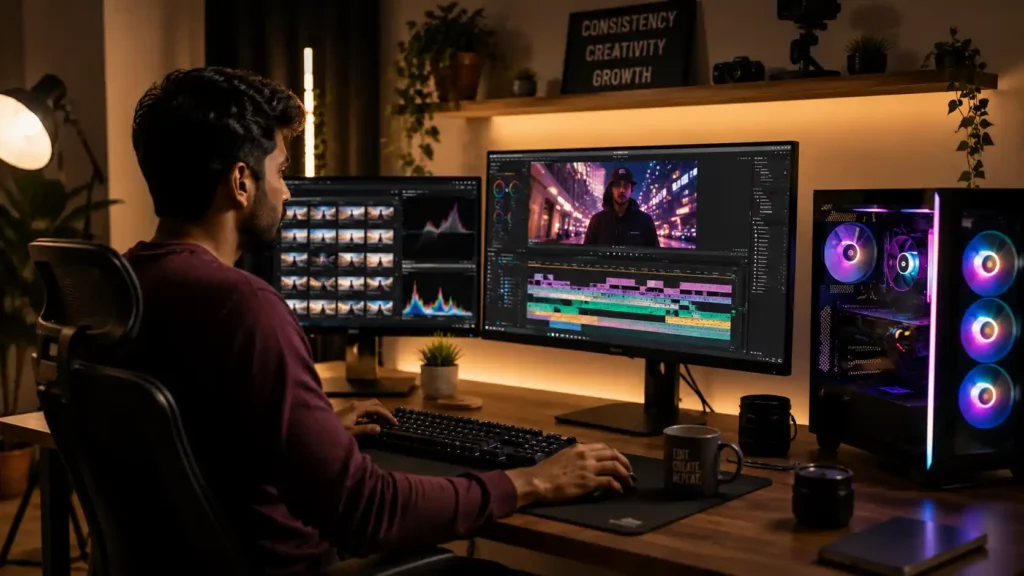
This is exactly why a build with a Ryzen 5 5600X and a mid-range GPU can feel sluggish scrubbing 4K footage, while a Ryzen 5 5600 paired with fast NVMe storage and enough RAM feels buttery smooth for the same task. Cores and threads matter more than clock speed here, because exporting a video is a classic multi-threaded workload — Premiere Pro’s Media Encoder and DaVinci Resolve’s render engine both split work across every core available. A 6-core, 12-thread CPU handles this far better than a 4-core chip clocked 500MHz higher.
The other thing that trips people up: assuming 8GB of RAM is enough because it runs Windows fine. It’s not, for editing. The moment you open a project with multiple 4K clips, a few adjustment layers, and some effects, your RAM usage climbs fast, and once it runs out, your system starts using your storage drive as virtual memory — which is dramatically slower and is exactly why a project that felt smooth for the first ten minutes suddenly starts stuttering every time you add a new clip.
What Actually Matters in a Video Editing PC (And What Doesn’t)
Before jumping into parts, it helps to know what you’re actually optimizing for, because on a tight budget every rupee needs to go somewhere useful.
CPU cores and threads over raw clock speed
A 6-core/12-thread CPU at 3.5GHz will out-render a 4-core/8-thread CPU at 4.5GHz almost every time, because export and render tasks scale with available threads.
16GB of RAM as an honest minimum, 32GB if your budget stretches
Adobe recommends 16GB minimum for Premiere Pro, and Blackmagic actually recommends 32GB minimum for DaVinci Resolve. We’re being upfront that 16GB is a compromise forced by this budget, not the ideal number — more on how to fix that cheaply later in this guide. if your budget allow you may buy at least 32GB of RAM.
NVMe SSD storage, not a SATA SSD or HDD
Video editing constantly reads and writes large sequential files — footage, cache files, preview renders. An NVMe drive handles this multiple times faster than SATA, and the price difference has narrowed enough that there’s genuinely no excuse to buy SATA storage for an editing rig anymore.
A GPU with hardware encode support, even a modest one
You don’t need a gaming powerhouse GPU, but you do want one with NVIDIA NVENC (or AMD’s equivalent) because it dramatically speeds up H.264/HEVC exports — the format 90% of YouTube and Instagram content actually gets exported in.
What doesn’t matter as much here
RGB lighting, an over clockable motherboard chipset, or a premium PSU with a gold-plus rating. Save that money and put it toward RAM or storage instead.
One honest note before we go further: this ₹60,000 figure covers the PC tower itself — CPU, motherboard, RAM, storage, GPU, PSU, and cabinet. It does not include a monitor, keyboard, mouse, or a Windows license. We’ll come back to why that last one matters more than people expect.
The Complete Video Editing PC Build Under ₹60,000
Here’s the full parts list, with prices as observed on Amazon India in early July 2026.
| Component | Model | Price (₹) | Buy Link here |
| Processor | AMD Ryzen 5 5600 (6-core/12-thread, AM4) | 13,499 | AMAZON |
| Motherboard | Gigabyte B450M DS3H (AM4, DDR4, M.2) | 5,999 | AMAZON |
| RAM | 16GB DDR4 3200MHz (Corsair Vengeance LPX) | 9,999 | AMAZON |
| Storage | WD Green SN350 500GB NVMe SSD | 8,499 | AMAZON |
| Graphics Card | Gigabyte GTX 1650 4GB D6 Windforce OC | 14,999 | AMAZON |
| Power Supply | Ant Esports RX550 550W, 80+ Bronze | 3,499 | AMAZON |
| Cabinet | Ant Esports ICE-100 Mid-Tower (Mesh, pre-installed fans) | 3,199 | AMAZON |
| Total | ₹59,693 |
That leaves roughly ₹300 of headroom against the ₹60,000 mark, which matters because Amazon prices genuinely shift day to day, especially right now with RAM and SSD costs moving unpredictably. Before you actually order, run this same list through Amazon’s cart to check current numbers — don’t take any single number here as gospel three weeks from now.
Breaking Down Every Component (And Why It Made the Cut)
AMD Ryzen 5 5600 — The Processor Doing the Heavy Lifting
This is the single most important decision in the entire build. The Ryzen 5 5600 gives you 6 cores and 12 threads on AMD’s mature Zen 3 architecture, boosting up to 4.4GHz, and — importantly for a tight budget — it ships with AMD’s Wraith Stealth cooler in the box, so you’re not paying extra for a CPU cooler.
For editing specifically, those 12 threads matter far more than the clock speed number on the box. Handbrake and Premiere Media Encoder both split transcoding work across every available thread, so a 6-core/12-thread chip consistently beats 4-core CPUs that are clocked higher, even in single-app export benchmarks. We considered the Intel Core i5-12400F as an alternative — it’s priced almost identically and performs within about 10% of the 5600 in most editing benchmarks — but the AM4 platform’s motherboard and RAM ecosystem is cheaper and more mature at this exact price point, which matters when every rupee is accounted for.
Still deciding which processor to buy? Our Best CPU Under ₹20,000 in India guide compares the top AMD and Intel options for gaming, editing, and everyday productivity.
One thing worth flagging honestly: this chip has no integrated graphics, so you need a dedicated GPU (which this build includes) just to get a display signal — keep that in mind if you’re ever troubleshooting and need to test without the graphics card installed.
Buy on AmazonGigabyte B450M DS3H — A Motherboard That Won’t Bottleneck You
There’s a temptation to overspend on a motherboard for future-proofing, and for this budget, that’s the wrong call. The B450M DS3H gives you everything an editing build actually needs: an M.2 slot for your NVMe SSD, 4 DIMM slots so you can add more RAM later without buying a new board, and solid compatibility with the entire Ryzen 5000 lineup.
We deliberately skipped B550 here. Yes, it supports PCIe 4.0, but a Ryzen 5 5600 and a budget NVMe SSD won’t come close to saturating even PCIe 3.0 bandwidth, so you’d be paying roughly ₹2,000-3,000 more for a spec sheet number that makes zero real-world difference to your export times.
16GB DDR4 3200MHz RAM — Enough to Multitask Without Choking
We’ll be straight with you here: 16GB is a compromise forced by the current RAM market, not our first choice. A single 16GB stick at 3200MHz keeps this build inside ₹60,000, but it means you’re running single-channel memory, which slightly limits bandwidth compared to a dual-channel 2x8GB kit.
Here’s why we still made this call: the motherboard has 4 DIMM slots, so adding a second 16GB stick later (taking you to 32GB dual-channel — genuinely comfortable territory for DaVinci Resolve) is a five-minute upgrade whenever RAM prices cool off or your budget allows. If you can stretch an extra ₹2,000-3,000 right now, buying a 2x8GB dual-channel kit instead of this single stick is a smarter move for smoother multi-layer timelines and effects preview — we’d genuinely recommend it if you have the flexibility.
WD Green SN350 500GB NVMe SSD — Speed Where It Actually Matters
This is where the RAM and SSD price surge hits hardest — a 500GB NVMe drive that would’ve cost roughly half this a couple of years ago now sits close to ₹8,500. Even so, this is non-negotiable territory: video editing lives and dies by how fast your storage can stream footage and cache preview files, and this WD Green SN350 delivers PCIe Gen3 speeds up to 2,400MB/s, which is more than enough for 1080p and most 4K editing workflows.
500GB fills up faster than people expect once you’re working with 4K footage — a single hour of 4K H.264 footage can easily eat 15-25GB. We’d suggest treating this drive as your OS and active-project drive, and adding external storage for footage archiving (we cover a cheap option for that below) rather than trying to keep everything on this one drive long-term.
Gigabyte GTX 1650 4GB — The GPU That Makes Exports Bearable
This is the component people are most likely to question, since a 4GB card from NVIDIA’s Turing generation isn’t going to win any gaming benchmarks in 2026. But for editing, it’s doing a specific, valuable job: NVENC hardware encoding.
Every Turing-based NVIDIA card, including this one, has a dedicated hardware encoder that Premiere Pro’s Media Encoder and DaVinci Resolve can both tap into for H.264 and HEVC exports. In practice, this means your export times for YouTube and Instagram-format videos drop noticeably compared to relying on CPU-only encoding, and your timeline scrubbing stays responsive because the GPU handles playback decode instead of dumping that work entirely on the CPU.
Where this card genuinely struggles is heavy DaVinci Resolve color grading with multiple stacked nodes, or 4K timelines with several layers of effects — 4GB of VRAM runs out quickly there. If that’s your primary use case rather than an occasional task, the RTX 3050 upgrade path below is worth the extra spend. If you’re comparing more GPU options before buying, read our Best Graphics Cards Under ₹30,000 in India guide.
Ant Esports RX550 550W, 80+ Bronze — Reliable Power, No Drama
550W gives this build comfortable headroom — the Ryzen 5 5600 and GTX 1650 combined draw nowhere near that under load, which means the PSU runs well within its efficient range instead of being pushed to its limit. The 80+ Bronze certification means it’s not wasting excessive power as heat, which matters for a component that’s going to run for hours during long export sessions.
We’d rather spend the saved budget here on RAM or storage than on a premium PSU brand, but we’re not cutting corners on wattage or certification — a PSU is the one place where “cheapest possible” genuinely risks damaging every other component if it fails badly.
Ant Esports ICE-100 Mid-Tower — Airflow for Indian Summers
This cabinet comes with pre-installed front and rear fans, which matters more in India than in a lot of build guides let on — long export sessions push your CPU to sustained high load for extended periods, and doing that inside a poorly ventilated cabinet during a Chennai or Delhi summer is a recipe for thermal throttling. The mesh front panel here prioritizes airflow over pure looks, which is exactly the right trade-off for a working machine rather than a showpiece.
What Kind of Editing Performance Should You Actually Expect?
Setting honest expectations here matters more than hype, so here’s what this build realistically handles.
1080p editing
This is where the build genuinely shines. Multiple video and audio tracks, color correction, basic effects, and transitions all play back smoothly in real time, and exports to 1080p H.264 for YouTube or Instagram complete quickly thanks to NVENC hardware encoding.
4K editing
Workable, but not effortless straight out of the box. Raw 4K footage scrubbing can stutter on a heavier timeline, and the fix here is a technique every editor eventually learns anyway: generate proxy files (lower-resolution stand-ins for your footage) to edit smoothly, then switch back to the full-resolution files for your final export. Both Premiere Pro and DaVinci Resolve support this natively, and on this hardware it’s the difference between a frustrating experience and a genuinely pleasant one.
Export times
A 10-minute 1080p video with moderate color grading and a few effects should export in a few minutes rather than tens of minutes, thanks to the combination of 12 CPU threads and NVENC. 4K exports take proportionally longer, as expected on any budget build.
Software choice matters here
DaVinci Resolve’s free version is an excellent pick for this budget — no subscription cost, and it’s genuinely one of the most capable editors available, though it leans harder on GPU power for its color grading tools than Premiere Pro does. If you’re doing heavy color work rather than straightforward cuts and edits, Premiere Pro’s Mercury Playback Engine might actually feel smoother on this exact GPU, since it distributes work slightly differently. CapCut Desktop is worth mentioning too for simpler, faster-turnaround content — it asks less of your hardware across the board.
Smart Ways to Adjust This Build for Your Needs
Skipping the GPU: The Ryzen 5 5600G Route
If you’re doing lighter editing work — YouTube vlogs, straightforward cuts, minimal color grading — you genuinely don’t need a dedicated GPU. Swapping the Ryzen 5 5600 and GTX 1650 for a Ryzen 5 5600G (integrated Radeon Vega graphics, roughly ₹12,499) frees up close to ₹16,000 in this budget.
Redirect that toward 32GB of RAM (add a second 16GB stick) and bump your storage to 1TB instead of 500GB — for lighter editing work where GPU-accelerated effects aren’t your bottleneck, more RAM and more storage headroom will improve your day-to-day experience more than a dedicated GPU would. One important note if you go this route: always pair the 5600G with dual-channel RAM (two matched sticks, not one), since the integrated graphics performance specifically benefits from the extra memory bandwidth in a way the non-G chips don’t.
Stretching the Budget: Upgrading to an RTX 3050
If you’re doing serious color grading in DaVinci Resolve or working with heavily layered 4K timelines, and you can push your total budget to around ₹67,000-68,000, swapping the GTX 1650 for an RTX 3050 6GB is the single upgrade that’ll make the biggest difference. You get 6GB of VRAM instead of 4GB, noticeably more CUDA cores for GPU-accelerated effects, and a newer NVENC generation with better HEVC encoding efficiency. It’s a genuinely worthwhile stretch if heavy color work is your bread and butter rather than an occasional task.
Don’t Forget Footage Storage
500GB fills up fast once you’re shooting 4K regularly, so budget an extra ₹3,500-4,000 for a 1TB external HDD to archive finished projects and raw footage off your main drive. It’s not glamorous, but running out of space mid-project is one of the most common frustrations first-time editing PC owners run into within their first month.
What This ₹60,000 Budget Does NOT Include
Being upfront about this avoids frustrating surprises at checkout. This budget covers the tower — CPU, motherboard, RAM, storage, GPU, PSU, and cabinet — but not:
A monitor. Color accuracy genuinely matters for editing, and if you’re pairing this with an old, uncalibrated monitor, your grading decisions won’t translate well to other screens. Budget monitors with decent sRGB coverage exist for reasonable prices if you need one. Need a display recommendation? Our Best Monitor Under ₹30,000 in India guide covers excellent options for video editing, gaming, and productivity.
A Windows license. This is roughly ₹6,000-8,000 extra for Windows 11 Home if you don’t already have a license to transfer from an old PC. It’s easy to forget this line item when you’re focused on component prices, and it catches a lot of first-time builders off guard.
Keyboard and mouse. Any basic wired set works fine for editing — this isn’t a category worth overspending on for this use case.
Frequently Asked Questions
Is a Ryzen 5 5600 good enough for video editing in 2026?
Yes, for 1080p editing and moderate 4K work, its 6 cores and 12 threads handle Premiere Pro and DaVinci Resolve’s multi-threaded export and render tasks comfortably at this price point. It won’t match a higher-tier Ryzen 7 or 9 for heavy 4K/8K professional work, but for the vast majority of YouTube, social media, and freelance editing work, it’s genuinely capable.
Can I edit 4K video with a GTX 1650?
Yes, with proxies for smooth timeline scrubbing on heavier projects. The card’s NVENC hardware handles 4K export acceptably, though GPU-accelerated color grading with many stacked effects will feel the 4GB VRAM ceiling faster than lighter editing work will.
Is 16GB RAM enough for DaVinci Resolve?
It’s the practical minimum, not the ideal. Blackmagic officially recommends 32GB for DaVinci Resolve. This build’s motherboard has 4 RAM slots specifically so you can add a second stick later without replacing anything.
Should I choose Intel or AMD for a budget video editing PC?
Both AMD’s Ryzen 5 5600 and Intel’s Core i5-12400F perform similarly for editing at this price point. We picked AMD here because the AM4 platform’s motherboard and RAM ecosystem currently offers slightly better value, but either is a defensible choice.
Do I need a dedicated GPU for video editing, or will integrated graphics work?
For light editing — simple cuts, minimal effects, no heavy color grading — an integrated GPU like the Ryzen 5 5600G’s Radeon Vega graphics can genuinely work fine. For anything involving GPU-accelerated color grading, effects-heavy timelines, or faster hardware-encoded exports, a dedicated GPU with NVENC makes a real difference.
Why do PC parts feel more expensive than they used to?
RAM and NVMe SSD prices have risen noticeably through 2026 due to a global memory chip shortage affecting the entire industry, not just India. If you’re comparing this build’s pricing against an older article you’ve read, that’s the reason for the difference — it’s not inflated markup, it’s the current market.
Final Verdict
At roughly ₹59,700, this build gives you a genuinely capable 1080p and moderate-4K video editing machine, built around the specific things that actually matter for editing workloads — CPU threads, adequate RAM, fast NVMe storage, and a GPU with hardware encoding — rather than gaming-benchmark bragging rights. It won’t replace a professional grading suite, and it won’t make 4K color-heavy timelines feel effortless without proxies, but for YouTube creators, freelance editors, and anyone stepping up from laptop editing, it’s a well-balanced starting point that leaves clear, sensible upgrade paths (more RAM, a better GPU) rather than a dead end.


